Kanban boards and sprints
Move tasks between statuses and filter by assignee, priority or deadline. Use Scrum to plan sprints, estimate story points and follow progress on a burndown chart.
Kanban · Scrum · burndown and velocityManage projects and requests in one app. Assign tasks, set deadlines and track progress. Keep email conversations, files and time entries with the work they belong to.
No sign-up. No card. Your own copy of the app with sample data.
 Your workspace
For teams that
manage projects and handle requests.
Free · no sign-up · no card
Go beyond screenshots. We will set up a separate, isolated copy of the app with sample data for you. Get a URL, username and password — and start exploring how your team could work.
The password is available only here, while your demo is running. Refresh this tab to see it again.
The server prepares a separate copy of the app with an HTTPS address.
Your URL, username and password will appear here.
Each activity extends your demo. After 15 minutes of inactivity, the instance and all its data are permanently deleted.
Up to three instances can run at once. If all are in use, try again in a few minutes. These figures come from the demo service. Do not enter real data.
EVERYDAY TEAMWORK
Plan work, assign ownership and track delivery. Everyone can see what needs doing, who is responsible and when it is due.
Move tasks between statuses and filter by assignee, priority or deadline. Use Scrum to plan sprints, estimate story points and follow progress on a burndown chart.
Kanban · Scrum · burndown and velocityBreak projects into stages and tasks, assign owners and set deadlines. View plans on a timeline or calendar and track multiple projects in one list.
Stages · timeline · calendarDefine statuses, transitions and the fields you need, including required fields. Build forms that collect the details needed for a request. Each team can have a separate space with its own settings.
Spaces · forms · templatesConnect a Microsoft 365 mailbox: incoming messages create requests, and replies join the conversation. Send notifications and reports through your own SMTP server, such as Gmail. Comments, attachments and history stay with the issue.
Microsoft 365 · SMTP · attachmentsStart a timer on a task or add an entry manually. Review hours in a calendar, submit a weekly timesheet for approval and export data to CSV.
Timers · timesheets · exportsCheck progress, overdue tasks, workloads and time spent. Choose what goes into each report and schedule email delivery. You can also include an AI summary.
Progress · overdue work · email reportsFind issues by text, assignee, status or deadline. Save frequently used filters, pin them to the menu and share them across your organization.
Search · saved views · team filtersKeep instructions, decisions and file links in your team’s space. Version history lets you revisit earlier content, and search helps you find the information you need.
Team pages · version history · helpWatch issues and get notified when they change. Choose email and push notifications for specific events in your settings.
In-app · email · pushTAKE A LOOK INSIDE
Explore the team board, project plan, task details and reports. Screenshots show the Polish interface with sample data; you can enlarge every view.
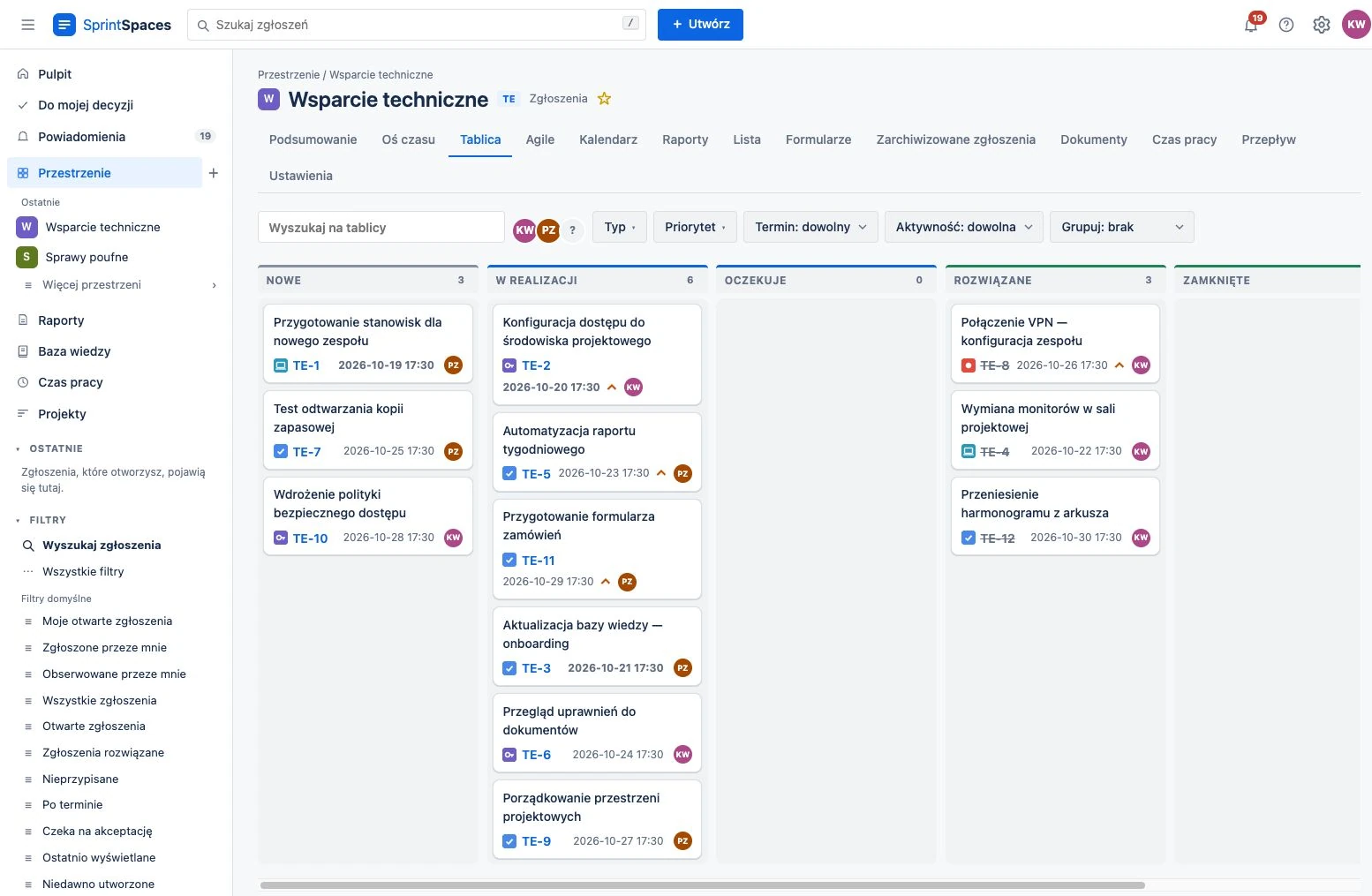
See tasks, assignees, priorities and deadlines on the board. Filter the view to suit your needs and move cards to update task statuses.
 Enlarge screenshot
App screenshots from 21 October 2026, showing the Polish interface. People, tasks and projects are fictional.
Migration diagram — sample data.
START WITH WHAT YOU HAVE
Keep the tasks and decisions you already have.
As part of your deployment, we will prepare automated data migration from Excel or Google Sheets . We will review the workbook structure, map columns to app fields and import the agreed data.
We import Google Sheets data from an exported file. Migration and synchronization scope depend on a review of your spreadsheet, including its layout and formulas.
Let’s talk about your spreadsheetSIGN-IN, PEOPLE AND ACCESS
You do not need Microsoft 365. SprintSpaces connects to your existing company accounts or securely stores passwords itself. You decide who gets access and which requests need approval.
Microsoft Entra, Google Workspace, Okta or another OpenID Connect provider — including a broker such as Keycloak with AD, LDAP or SAML. Enable several methods at once, or use SprintSpaces password accounts with required or optional two-factor authentication (TOTP).
The user list can sync with Microsoft Graph, Google Directory or SCIM 2.0. New joiners receive access, and leavers lose it. A blocked account loses access everywhere: in the browser, through the API and via AI agents.
Send a request to the designated approver and see their decision and reasoning. If the approved scope or cost changes, a new approval is required.
Only the requester and designated approver can see confidential issues. Being an administrator does not grant access to their content, and integrations never send it out.
ASSISTANT AND YOUR OWN AI AGENT
Ask which tasks are waiting for you, how a workflow works or how much time was spent on a job. The assistant can find answers in the app’s data and knowledge base.

Spinka explains how to use the app, finds requests and checks their status. With your confirmation in the conversation, it can also create a task, add a comment, change a deadline or log your time.
An administrator enables Spinka after configuring ElevenLabs. It uses the permissions of the person chatting and cannot access confidential issues or drafts.
Use Claude or another MCP-compatible agent? Connect it to SprintSpaces to search for information and work with tasks from your own tool. Choose the access scope in the app; the agent still operates with your permissions.
SprintSpacesBy default, only read access to regular issues is selected. Enable additional permissions, including data changes, separately. We will check the connection to your chosen agent during deployment.
TRY IT WITH YOUR TEAM
Start with a free team pilot. Together, we will choose one workflow, configure the app and migrate the agreed data. Your team can try it with its own tasks.
We will discuss how your team works and choose a good starting workflow.
We will review your spreadsheets and prepare an automated import of selected data.
We will configure statuses, fields, forms and the integrations you need.
We will introduce the app to your team, gather feedback and review the results together.
We will agree the pilot’s scope, duration and terms for continued use before starting.
Any hosting or external service costs will be discussed separately.
GETTING STARTED
Users work in a browser and sign in with an existing account or a SprintSpaces password. We will help set up the server and integrations during deployment.
We will size CPU, RAM and file storage for your team during the pilot. AI features require separate provider configuration.
GOOD TO KNOW
We can start with one team or workflow. Spaces have their own statuses, fields and views, so deployment can fit the way each department works.
Yes. After reviewing the files, we will map columns to app fields and prepare an automated import. Google Sheets data comes from an export. For Excel on SharePoint or OneDrive, two-way synchronization of selected data is also possible. We will agree separately how to handle formulas and unusual spreadsheet layouts.
No. Your team can sign in with Google Workspace, Okta, another OpenID Connect provider or password accounts with two-factor authentication managed by the app. User lists can come from Google Directory, Microsoft Graph or SCIM. Microsoft 365 is needed only to turn incoming emails into requests; notifications and reports can use any SMTP server.
Launch the demo yourself in moments, without signing up. It is a separate copy of the app with fictional data, deleted after 15 minutes of inactivity. A pilot is a free trial deployment for your team, prepared with us using your workflows, data and sign-in setup.
No. You can use the app without AI. An administrator enables Spinka, and you connect your own agent through MCP. You approve its access scope in SprintSpaces; permission to change data must be enabled separately.
Yes. Microsoft 365 mail handles requests and replies, and outgoing mail also works through SMTP. The REST API, CSV import and export, and signed webhooks let you build integrations and automations, for example in n8n or Zapier. MCP connects your own AI agent, while SCIM and Google or Microsoft directories supply user lists. For Excel on SharePoint or OneDrive, we can configure synchronization of selected data.
No. Use it to manage projects, IT requests, purchase requests and administrative tasks. Statuses, issue types and forms are tailored to how your team works.
Preparing your space, configuring the chosen workflow, migrating agreed data and introducing the app to your team. Before starting, we will confirm the scope and duration, terms for continued use, and any hosting or external service costs.
LET’S TAKE THE FIRST STEP
In a 30-minute conversation, we will discuss your needs and agree the scope of a free pilot. Tell us what your team does and what you would like to improve.
Working in spreadsheets? Tell us what data you collect and how many people use it. A few sentences are enough to start. Want to explore on your own first? Launch a free demo.